What Actually Happens When You Visit a Website (In 3 Seconds)
DNS lookups, TCP handshakes, TLS negotiations, HTTP requests. A non-boring explanation of the 3-second journey from URL to rendered page.
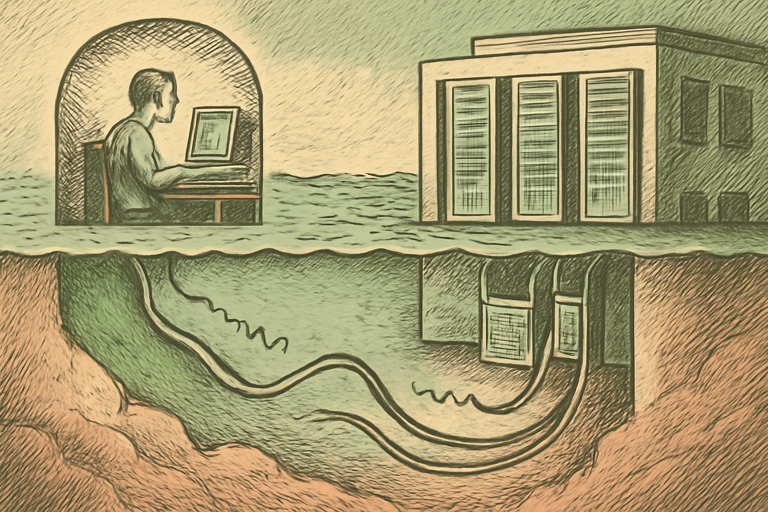
You type “google.com” and press Enter. A page appears. It took about 1 second. In that second, your computer did roughly the equivalent of mailing a letter to every post office in the world, getting directions, driving there, showing ID, requesting specific files, receiving them, and assembling them into a visual page.
Here’s what actually happens.
Step 1: DNS Lookup (Finding the Address)
Your computer doesn’t know what “google.com” means. It’s a human-readable name. Computers speak in IP addresses (like 142.250.80.46).
So your browser asks a DNS (Domain Name System) server: “What’s the IP address for google.com?” The DNS server is like a phone book for the internet. It responds with the IP address.
This takes about 20-120ms. Your browser caches the result so it doesn’t have to ask again for a while.
Step 2: TCP Connection (Saying Hello)
Now your browser knows the address. It establishes a TCP (Transmission Control Protocol) connection with the server. This involves a “three-way handshake”:
- Your browser: “Hey, I want to connect” (SYN)
- Server: “Cool, I’m ready” (SYN-ACK)
- Your browser: “Great, let’s go” (ACK)
Three messages, just to say hello. It’s the networking equivalent of that awkward “you go first, no you go first” dance at a doorway.
Step 3: TLS Negotiation (Showing ID)
If the site uses HTTPS (and it should), there’s another handshake. Your browser and the server agree on encryption methods and exchange certificates. This proves the server is who it says it is and establishes encrypted communication.
You can verify a site’s certificate with the SSL certificate checker. If a certificate is expired or invalid, your browser shows that scary warning page.
Step 4: HTTP Request (Asking for the Page)
Your browser sends an HTTP GET request: “Please give me the file at /index.html.” The server finds the file and starts sending it back.
The response includes headers (metadata about the response) and the body (the actual HTML). Check a site’s security headers with the security headers analyzer.
Step 5: Parsing and Rendering (Building the Page)
Your browser receives the HTML and starts parsing it. As it reads, it discovers more things it needs:
- CSS files (how the page looks)
- JavaScript files (how the page behaves)
- Images, fonts, videos
Each of these triggers more requests (steps 1-4 again for each resource). A typical page makes 50-100 additional requests.
The browser builds two trees:
- DOM tree (the structure of the page)
- CSSOM tree (the styles)
It combines them into a “render tree,” calculates the layout (where everything goes), and paints pixels on screen.
Step 6: JavaScript Execution
After the HTML is parsed and CSS is applied, JavaScript runs. It can modify the DOM, fetch more data, add interactivity, and trigger additional rendering. Modern web apps often do significant work in this step.
The Total Time Budget
All of this happens in 1-3 seconds on a good connection:
- DNS: ~50ms
- TCP: ~50ms
- TLS: ~100ms
- HTTP request/response: ~200ms
- Parsing/rendering: ~500ms
- JavaScript: ~500ms
Use the page load estimator to see how your page’s total weight translates to real load times on different connections.
Why This Matters
Understanding this process helps you build faster websites:
- Fewer requests = fewer handshakes = faster page
- Smaller files = less transfer time = faster page
- CDNs = shorter physical distance = faster DNS and transfer
- Caching = skip steps entirely = much faster page
Every optimization maps to a specific step in this journey. When someone says “optimize your website,” this is what they mean: make each of these steps as fast as possible.
Next time a page loads slowly, you’ll know exactly where the bottleneck might be. That’s power.